Click Here to Add Beebom as a Trusted Source Add as a preferred source on Google
Minecraft in itself is a simple game built on blocks, and the vanilla gameplay doesn’t eat up a lot of your resources. Once you start loading up massive texture packs and modpacks, expect a few crashes or game freezes. Thankfully, we have made this detailed guide on how to allocate more RAM to Minecraft and help solve this issue.
So, whether you’re playing the usual gameplay or running hundreds of the best Minecraft mods or Minecraft texture packs, this guide will help stabilize your in-game experience.
How to Allocate More RAM to Minecraft Using the Official Launcher
A large group of players, including me, still use the official Minecraft Launcher to play their game. And it is surprisingly simple to change the allocated memory settings once you know what Minecraft commands to update and where to find them.
However, before you change any settings, keep this rule of thumb in mind: you must not allocate more than 50% of your total system RAM to Minecraft. Once you’re ready, perform the following steps to learn how to allocate more RAM to Minecraft:
- Open the Minecraft Launcher and click on the Installations tab.
- Find the installation you normally play. Click on the three-dot menu and choose Edit.
- Click on More Options to open a drop-down menu to find the JVM arguments text bar.
- Now edit the numbers after the text ‘Xms‘ and ‘Xmx‘ to change the minimum and maximum allocated RAM. Give your preferred value and click on Save.
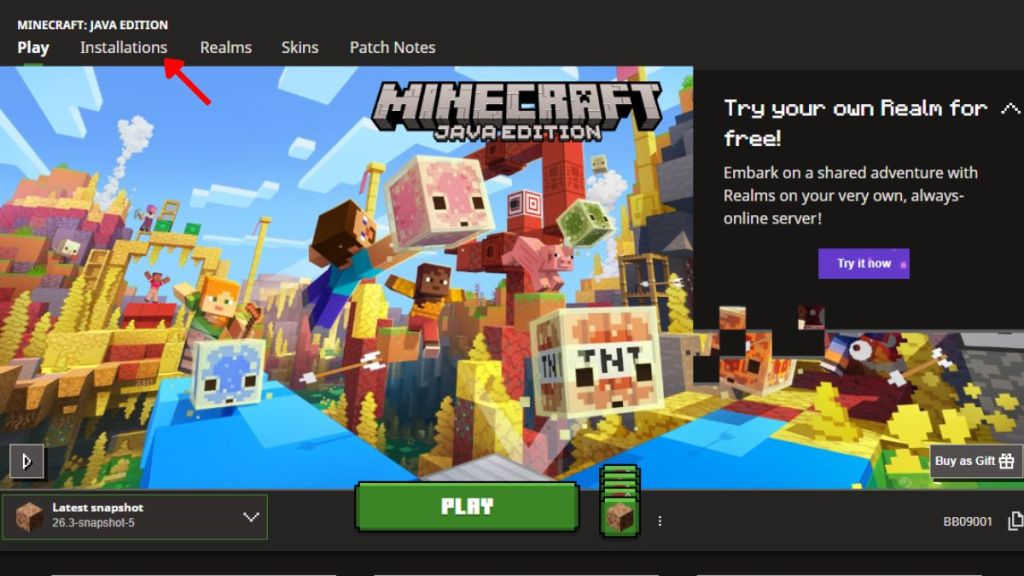
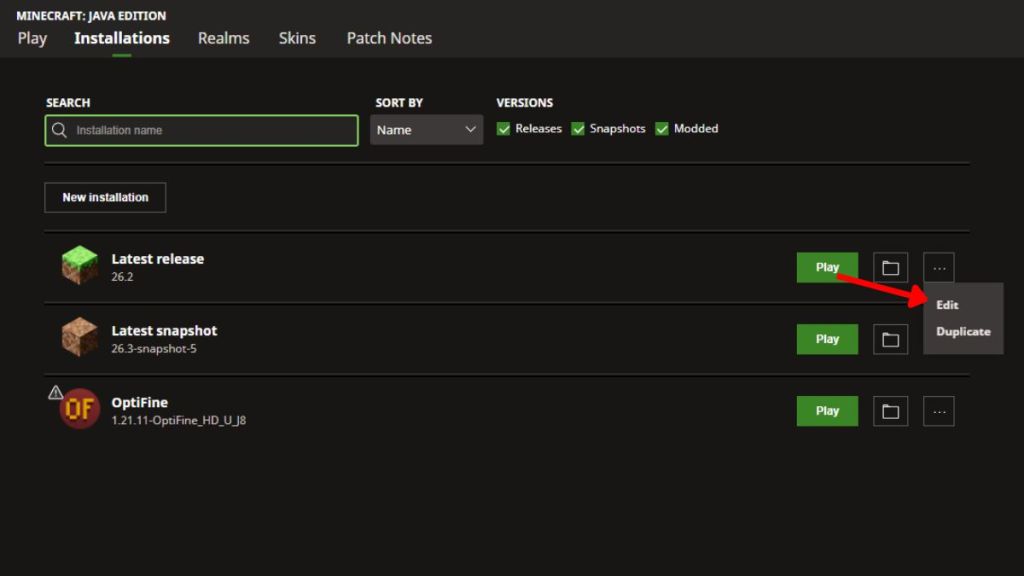

Now launch the game to have more allocated memory while playing. Once you boot up a new world, you can press the F3 button to find the allocated RAM written on the top right corner of the screen.
Now, you can easily use the Distant Horizons mod, or simply increase the simulation distance to see farther in the game. Do check the best Minecraft seeds to generate some worlds with massive structures that would crash your system before.
How to Allocate More RAM to Minecraft CurseForge
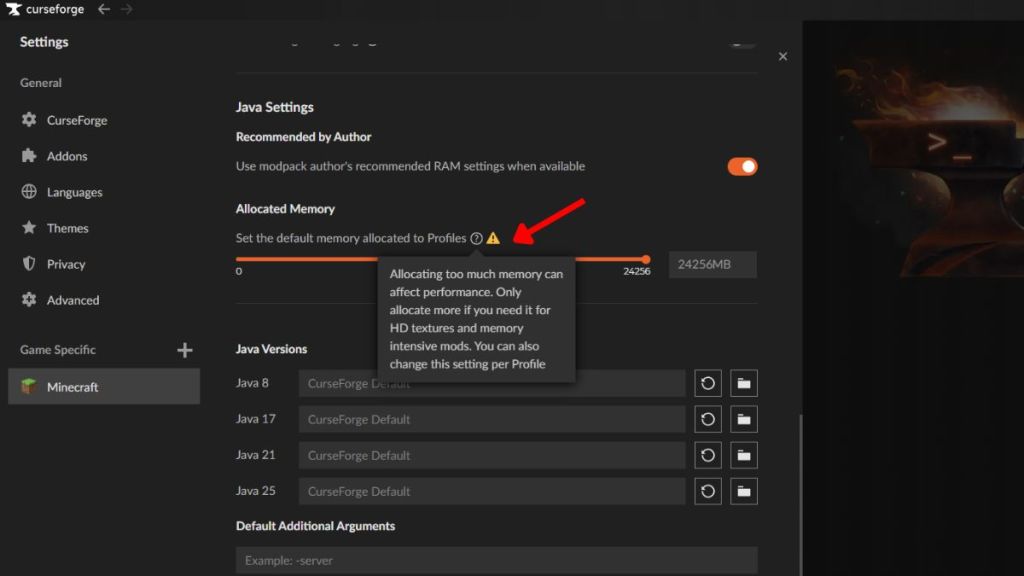
A lot of players also use the CurseForge application to manage their Minecraft modpacks. Fortunately, learning how to allocate more RAM to Minecraft in CurseForge is way easier than in the Launcher. All you need to do is follow the steps below:
- Launch the CurseForge application and click on the Settings icon in the bottom left corner.
- Navigate to the Minecraft tab and click on it to open the detailed Settings menu.
- Scroll down to find the Allocated Memory slider under the Java Settings.
- Move this slider to the right or left to change the allocated memory settings on CurseForge. Or, you can simply type the allocated memory in the right text box.
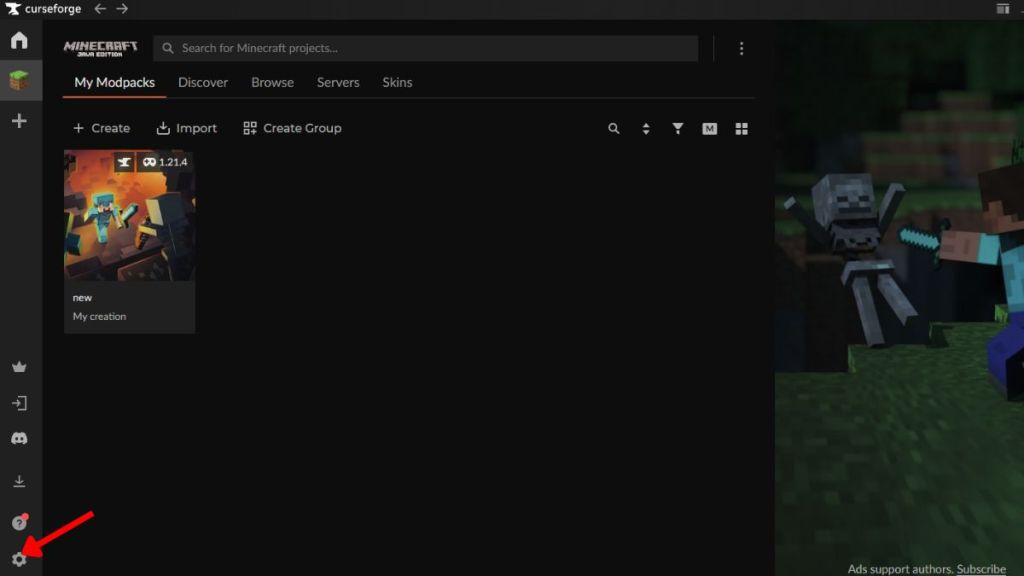
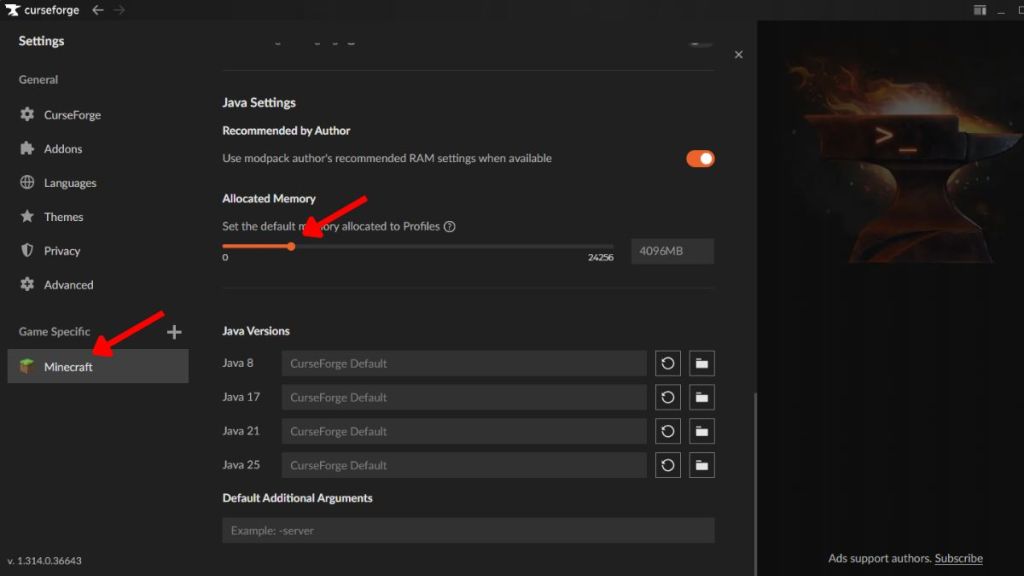
The changes are saved automatically, so you can simply go back and launch Minecraft with the modpack afterwards. After entering the world, you can again press the F3 key on your keyboard to open the debug screen and check the allocated memory.
Common Mistakes To Avoid Before You Allocate More RAM to Minecraft
Increasing the RAM in Minecraft isn’t a magic performance enhancer trick. If your FPS remains low even after allocating more memory, the issue lies in your CPU or GPU, or using high-definition Minecraft shaders, rather than RAM itself. Here are some other mistakes and key takeaways that you should always keep in mind before learning how to allocate more RAM to Minecraft:
- Before allocating anything, make sure to open your Windows or MacOS settings and check how much RAM your system has.
- Resist the temptation to assign every spare gigabyte to Minecraft, hoping that it would heavily improve your game performance and make it smoother.
- Do not remove or modify other JVM arguments unless you know exactly what they do. Only change the numbers following the Xms and Xmx parameters.
- Note that vanilla Minecraft runs well on 2-4 GB RAM; light modpacks with less than 10 mods do well on 4-6 GB, and large modpacks with 100+ mods require 8- 10 GB.
Now, you know all about how to allocate more RAM to Minecraft and what all aspects you should keep in mind. So, do you now need a guide on how to install Minecraft mods, or have you already found some of the best Minecraft horror mods to enjoy? Let us know in the comments below.
How much RAM should I allocate to Minecraft?
For vanilla gameplay, 4 GB is usually enough RAM to run Minecraft. Most modpacks run well with 6-8 GB of RAM, while extremely large modpacks can sometimes require 8-10 GB of RAM if your system has enough memory.
Can I allocate more RAM to Minecraft Bedrock Edition?
No, Minecraft Bedrock Edition manages memory automatically and doesn’t offer a manual RAM allocation option like the Java Edition.
Can allocating more RAM increase FPS?
It doesn’t necessarily increase the FPS when you increase the RAM in Minecraft. It just helps prevent crashes, stuttering, and memory-related shutdowns from happening. If your Graphics Card or Processor is the real bottleneck, allocating more RAM won’t solve the issue of reduced FPS.
Related Articles